
Choosing Your Lead Type During Campaign Setup
Overview
When creating a Cold Email campaign, you'll reach the "Select Your Leads" page where you choose how to source your target contacts. This guide explains the three available options, their differences, and how to decide which one fits your needs.
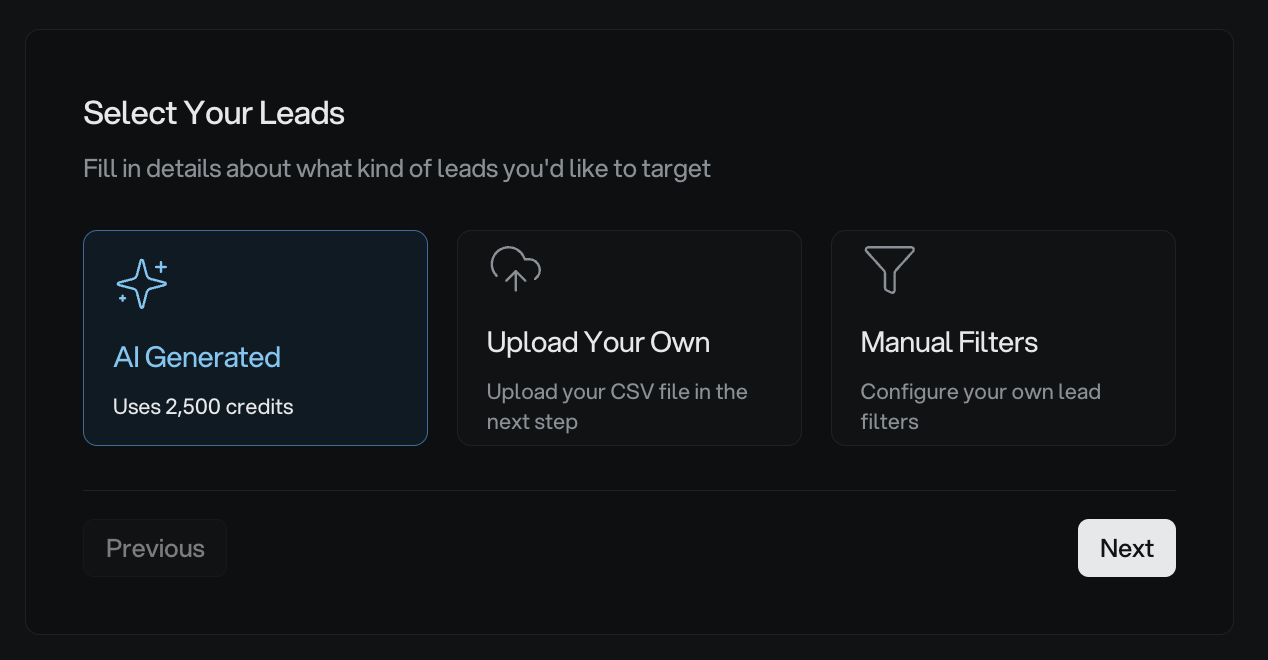
The Three Lead Type Options
AI Generated Leads
The AI Generated option uses your campaign description to automatically find and verify leads. You provide a simple niche description (like "HVAC companies in Canada"), select locations, job titles, and company headcount ranges, then set how many leads you want (minimum 500).
Credit cost: The default cost is 2,500 credits, but actual usage may range from 500 credits (minimum) to 5,000 credits or more.
Best for: Getting started quickly when you have a clear target audience but don't want to manually configure filters or already have a list.
Upload Your Own
This option lets you import existing lead lists from a CSV file. You'll upload your file in the next step, where the system helps you map columns (email, name, company) and validates the data. No credits are consumed for uploaded leads.
Credit cost: Free (no credits required)
Best for: When you already have a curated list from another source, event attendees, or previous campaigns.
Upload Your Own accepts CSV files up to 100MB with a maximum of 20,000 rows. Make sure your file includes email addresses at minimum.
Manual Filters
Manual Filters gives you advanced search capabilities with precise control over targeting criteria. You can filter by industry groups, departments, seniority levels, company revenue, recent news, funding rounds, and more. A live preview shows estimated lead counts as you refine filters.
Credit cost: Varies based on the number of leads requested (1 credit per lead), with a minimum of 500 leads.
Best for: Highly specific targeting requirements, like "Series A funded SaaS companies with 50-200 employees in the United States that recently expanded offices."
Comparing the Options
Similarities Across All Three
All options require a minimum of 500 leads per campaign
Leads integrate with external sources for verification and enrichment
All leads appear in your campaign's Leads tab with name, email, company, and status
Processing takes 5-15 minutes after selection (you'll see a "Finding and Verifying Leads" progress screen)
Key Differences
Feature | AI Generated | Upload Your Own | Manual Filters |
|---|---|---|---|
Configuration Complexity | Simple (niche + basic filters) | File preparation required | Advanced (many filter options) |
Credit Usage | Default 2,500 credits | None | 1 credit per lead |
Targeting Control | AI interprets your description | Total control (your data) | Precise filter combinations |
Data Source | Platform database + AI | Your existing list | Platform database |
Setup Time | 2-3 minutes | Depends on CSV prep | 5-10 minutes for complex filters |
How to Choose the Right Option
Choose AI Generated Leads If:
You're launching your first campaign and want a quick start
You have a clear niche but don't know exactly which filters to use
You have credits available and prefer speed over granular control
You trust AI to interpret your targeting description accurately
AI-generated results are optimized for speed and relevance. If you’d like more predictable volume or tighter alignment to your niche, Manual Filters offer additional control for future campaigns.
Choose Upload Your Own If:
You already have a lead list from another tool, event, or database
You want to preserve credits for other campaigns
You've manually vetted your contacts and don't need additional filtering
Your list is formatted correctly with email addresses and ideally includes names and companies
Choose Manual Filters If:
You need very specific targeting (e.g., "CTOs at healthcare startups with recent funding")
You've tried AI Generated and want more precise results
You're comfortable navigating advanced search interfaces
You want to see a live preview of lead counts before committing
Accessing the Lead Selection Page
You'll see the "Select Your Leads" modal during campaign creation:
Go to Dashboard > Cold Email Agent > New Campaign
Enter your campaign name and click Next
The "Select Your Leads" page appears as Step 2 of 4
Click one of the three cards to choose your lead type
Click Next to proceed to the configuration form
If you've already added leads to a campaign, you can add more by going to the campaign's Leads tab and clicking "Add Leads" to reopen this selection modal.
After Making Your Selection
Once you click Next, you'll proceed to the configuration form specific to your chosen option:
AI Generated: Fill in your niche description, select locations/job titles/headcount, and set lead count
Upload Your Own: Upload your CSV file and map columns (email, name, company)
Manual Filters: Configure advanced filters across industry, department, seniority, revenue, and more
After configuration, the system processes your request with a progress screen. This typically takes 5-15 minutes. Your leads will then appear in the campaign's Leads tab.
Credit Requirements
Before selecting AI Generated or Manual Filters, check your credit balance in the top-right corner. The modal displays your remaining lead limit (e.g., "500/1000 leads remaining").
AI Generated: Requires 2,500 credits upfront regardless of final lead count
Manual Filters: Consumes 1 credit per lead based on your requested count
Upload Your Own: No credits needed
If you're low on credits, consider uploading your own list or learn how lead scraping credits work to plan your usage.
Common Questions
Can I use multiple lead types in the same campaign?
Yes. After your initial selection, you can return to the Leads tab and click "Add Leads" to choose a different option and append more contacts to the same campaign.
What if I don't see the AI Generated option?
The AI Generated card may not appear if your account lacks sufficient credits or doesn't meet plan requirements. Check your credit balance and ensure your Instantly or Acquisity account is connected.
Can I edit my lead selection after clicking Next?
Once the campaign is created and leads are processing, you can add more leads but cannot remove the initial batch.
Related Resources
How to Create a New Cold Email Campaign - Full campaign creation workflow
Creating a Campaign with Manually Uploaded Leads - Detailed CSV upload instructions
How Lead Scraping Credits Work - Understanding credit costs and usage