
Creating a Task in the CRM
Overview
Tasks help you track follow-ups, reminders, and actionable items in your CRM. You can create standalone tasks or link them to contacts and companies to stay on top of your sales activities.
This guide walks you through creating a task step-by-step.
Need an introduction to the CRM? Check out the CRM Overview to understand how tasks fit into your workflow.
Before You Start
Make sure you're logged in with access to your organization's CRM. No special setup is required—all users can create tasks.
Creating a Task
1. Navigate to the Tasks page
From your dashboard sidebar, click CRM, then select Tasks.
2. Open the task creation form
Click the Add task button in the top-right corner.

3. Fill in the task details
Give your task a title (required). This is a brief description of what needs to be done.

Add a description (optional). Provide more context about the task if needed.
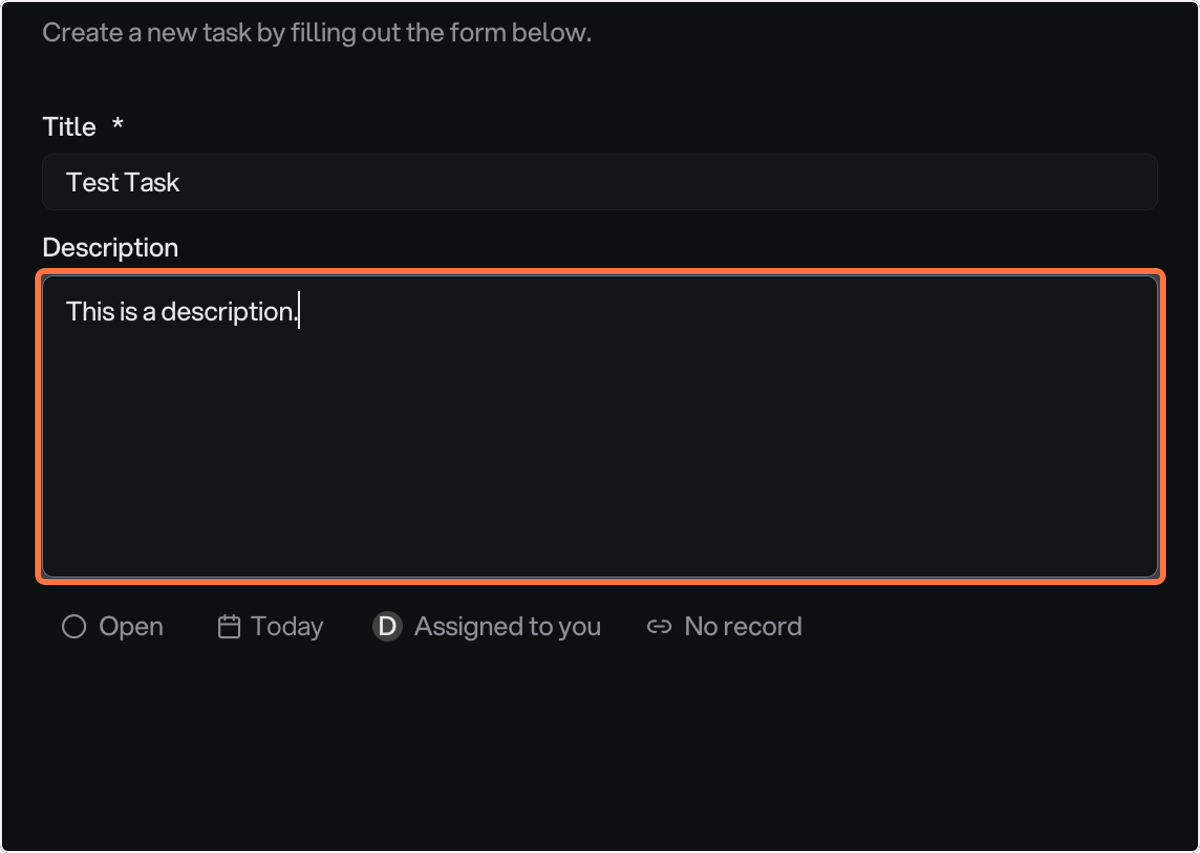
4. Set a due date
Click the Due Date field to open the calendar picker.

Select your desired date from the calendar.

The due date defaults to today. Tasks with overdue dates will be highlighted in red on your tasks list.
5. Assign the task
Use the Assignee selector to assign the task to yourself or another team member. By default, tasks are assigned to you.

6. Link to a contact or company (optional)
Connect your task to a specific contact or company in your CRM. Click the Related Record selector, then search for and select the record you want to link.

Linking tasks to contacts or companies helps you track all activities related to that record. Linked tasks appear in the entity's activity timeline.
7. Save your task
Click Save to create your task. It will appear in your Open tasks list.

You'll see a green confirmation message when your task is created successfully.
What Happens Next
Your new task appears at the top of your Open tasks list. You can:
Click the checkbox to mark it as complete
Click the task row to edit details
Filter your tasks by assignee, due date, or related record
If you linked the task to a contact or company, it will also appear in that record's activity timeline.
Common Issues
Can't save my task
Make sure you've entered a title. The title field is required and must be between 1-200 characters.
Task creation failed
If you see an error message, try these steps:
Check your internet connection
Refresh the page and try again
Verify that the assignee and linked record still exist in your organization